Guide

Sommelio, step by step

This guide explains every feature of the Sommelio app in the order you meet them. Each topic lists the goal, what you need, numbered steps with a screenshot, tips and the mistakes people make most often. The screenshots come from the iPhone app; the Android app has the same screens.

Getting started

How do I install Sommelio?

Goal: Get the app onto your phone.

Before you start

  • An iPhone with a current iOS version or an Android phone
  • An internet connection

Steps

  1. Open the App Store on your iPhone or Google Play on your Android phone.

  2. Search for Sommelio and check that the publisher is DigitalFreedom.

  3. Tap Get or Install and wait until the app icon appears on your home screen.

  4. Open Sommelio. You do not need an account, an email address or a password.

Tips

  • The download buttons on sommelio.app lead straight to the right store page.

Common mistakes

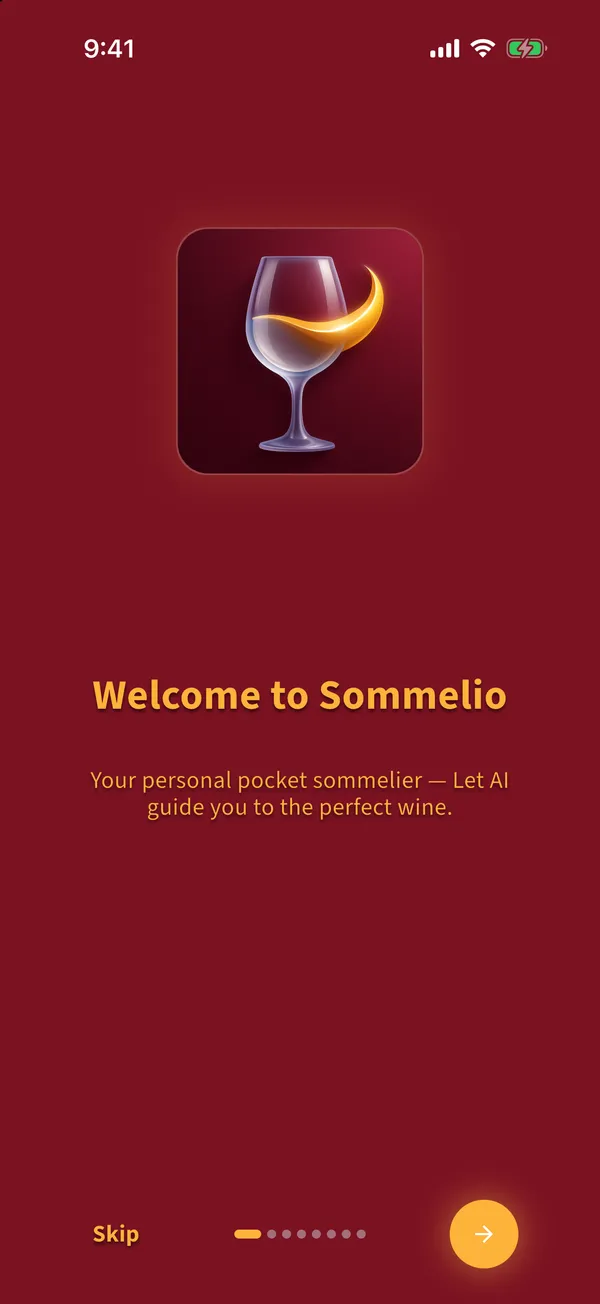
  • Installing a different app with a similar name. Sommelio shows a wine glass with a golden swirl on a dark red tile.

Back to the topics

Getting started

What happens on the first start?

Goal: Learn the basics in eight short screens and finish the introduction.

Before you start

  • Sommelio is installed

Steps

  1. Read the welcome screen and tap the round arrow button at the bottom right to go to the next screen.

    Welcome screen of the Sommelio app with the app icon and the round next button
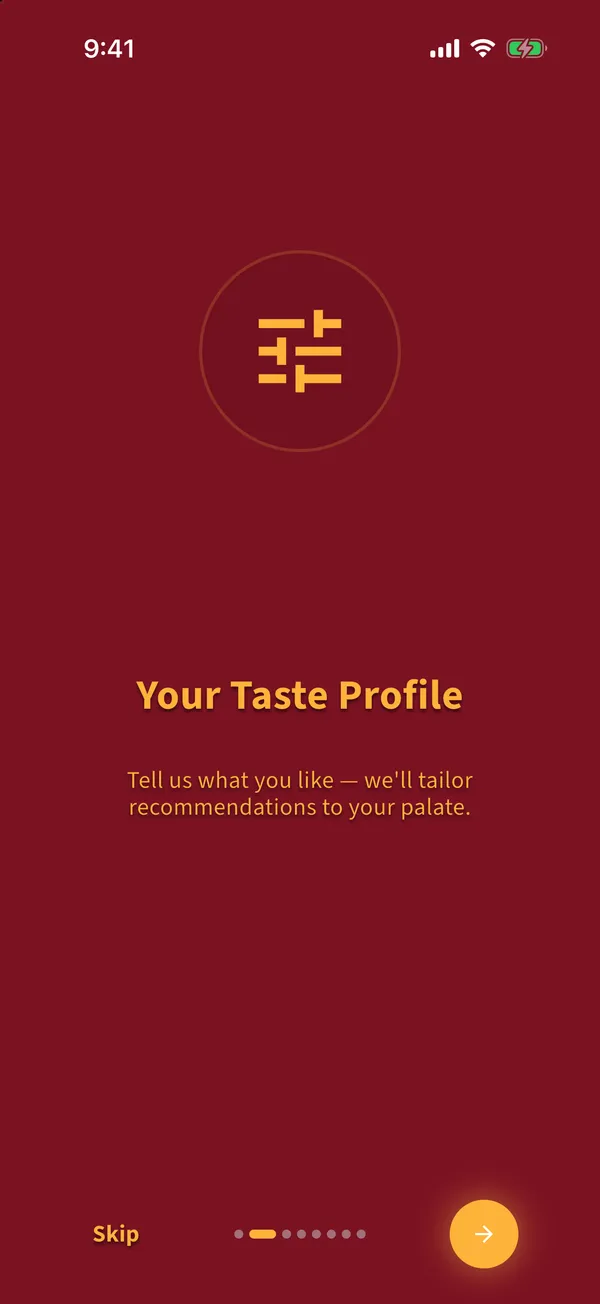
  2. The second screen explains the taste profile. You set it right after the introduction.

    Introduction screen about the taste profile
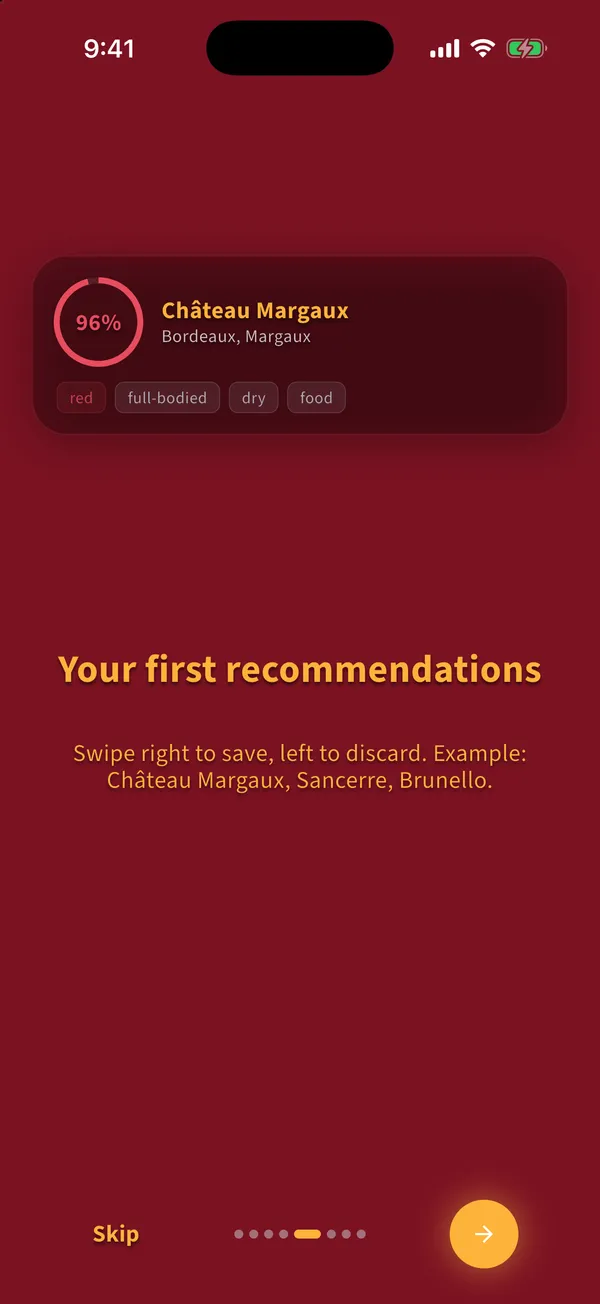
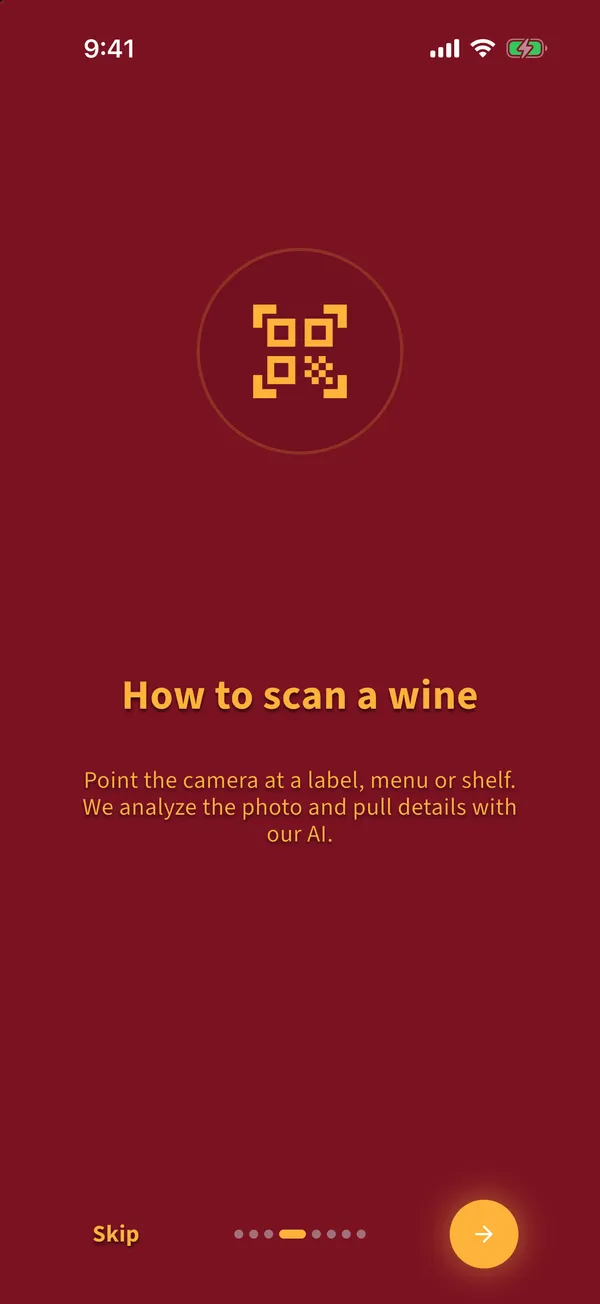
  3. The following screens show how scanning works, how results look and how you rate wines. The example wines are demo data and disappear at the end.

    Introduction screen with an example recommendation card
  4. On the last screen tap Let's go.

  5. Your phone asks whether Sommelio may send notifications. Allow them if you want rating reminders. You can change this later in Profile.

  6. Sommelio then shows its Premium offer once. Tap Later at the top right to continue with the free scans.

Tips

  • Skip at the bottom left jumps to the end of the introduction at any time.

Common mistakes

  • Expecting the demo wines in your list afterwards. They are removed when the introduction ends.

Back to the topics

Getting started

How do I set my taste profile?

Goal: Tell Sommelio what you like, so every result is ranked against your taste.

Before you start

  • The introduction is finished and the Start tab is open

Steps

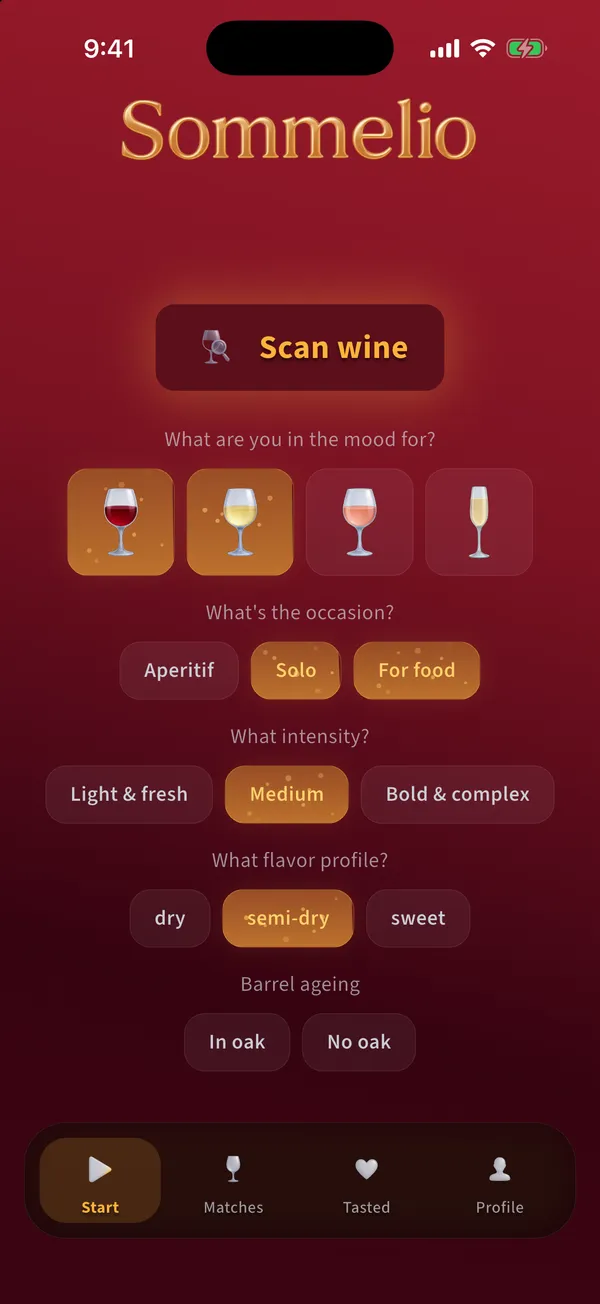
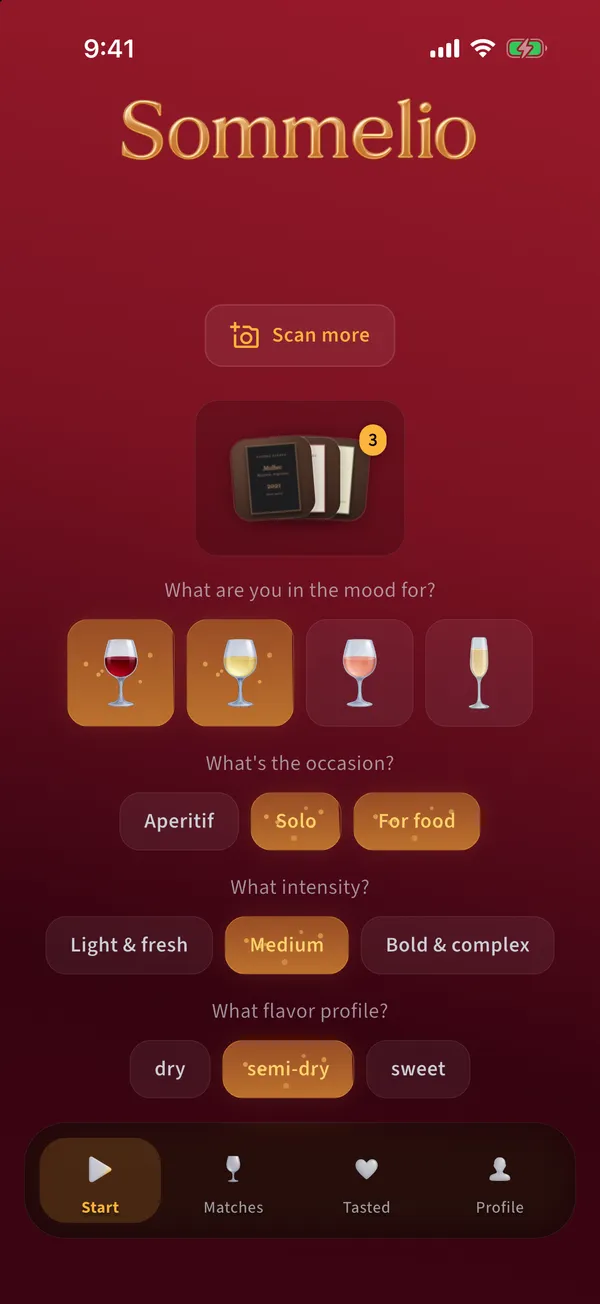
  1. Under What are you in the mood for? tap one or more wine types: red, white, rose or sparkling. A selected type is highlighted in gold.

    Start tab with the taste profile: wine types, occasion, intensity, flavor profile and barrel ageing
  2. Choose the occasion: aperitif, solo or with food.

  3. Choose the intensity: light and fresh, medium or bold and complex.

  4. Choose the flavor profile: dry, semi-dry or sweet.

  5. Optional: under Barrel ageing choose in oak or no oak. Leave both open if you do not mind.

Tips

  • Sommelio saves every change at once. Adjust the profile before each scan, for example white and aperitif before dinner, red and with food for the main course.
  • Your ratings of tasted wines refine the results over time, see the topic on rating.

Common mistakes

  • Selecting only one narrow combination, for example red, light and sweet, and then getting no match. Select a second wine type or another intensity and scan again.
  • Coming in through a restaurant QR code before ever saving the profile. Sommelio then asks you to choose at least one option in every category first. Tap one option in each category on the Start tab, then the import continues.

Back to the topics

Scanning

How do I scan a label, a wine list or a shelf?

Goal: Photograph one or more wines so Sommelio can read them.

Before you start

  • Taste profile set
  • Camera access allowed for Sommelio
  • Free scans left or Premium

Steps

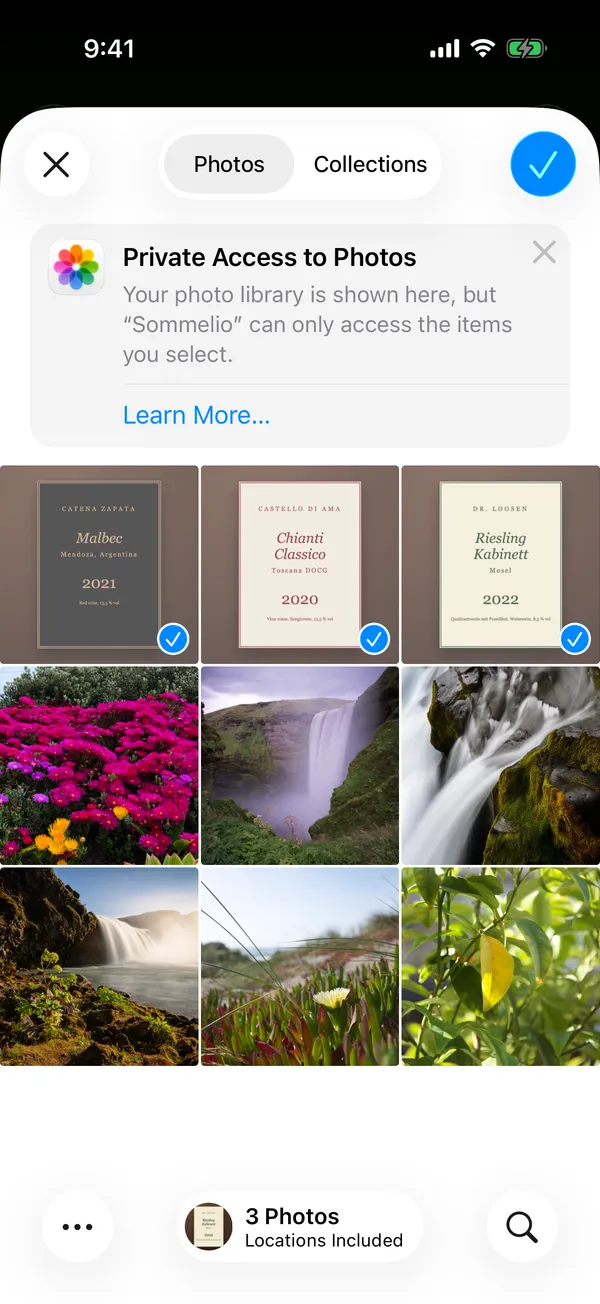
  1. On the Start tab tap Scan wine. The camera opens.

    Introduction screen that shows how to scan a wine
  2. Point the camera at a label, a page of the wine list or a shelf. Hold the phone still until the quality badge shows good.

  3. Tap the round gold shutter button. The photo is added to your collection.

  4. Add more photos the same way, up to 10 per scan, for example every page of a wine list.

  5. Go back to the Start tab and tap Analyze, see the topic on starting the analysis.

Tips

  • Good light and a straight angle give the best results. Avoid reflections on glossy labels.
  • One photo of a whole shelf or a full menu page is enough. Sommelio reads every wine on it.

Common mistakes

  • The camera stays black: camera access is off. Allow it in the system settings under Sommelio, Camera, then tap Try again.
  • Photos that are blurred or cut off. Sommelio can only rank what it can read.

Back to the topics

Scanning

How do I start the analysis?

Goal: Send the collected photos for analysis and get your top matches.

Before you start

  • At least one photo or PDF page in the collection
  • An internet connection; the status line shows Backend online

Steps

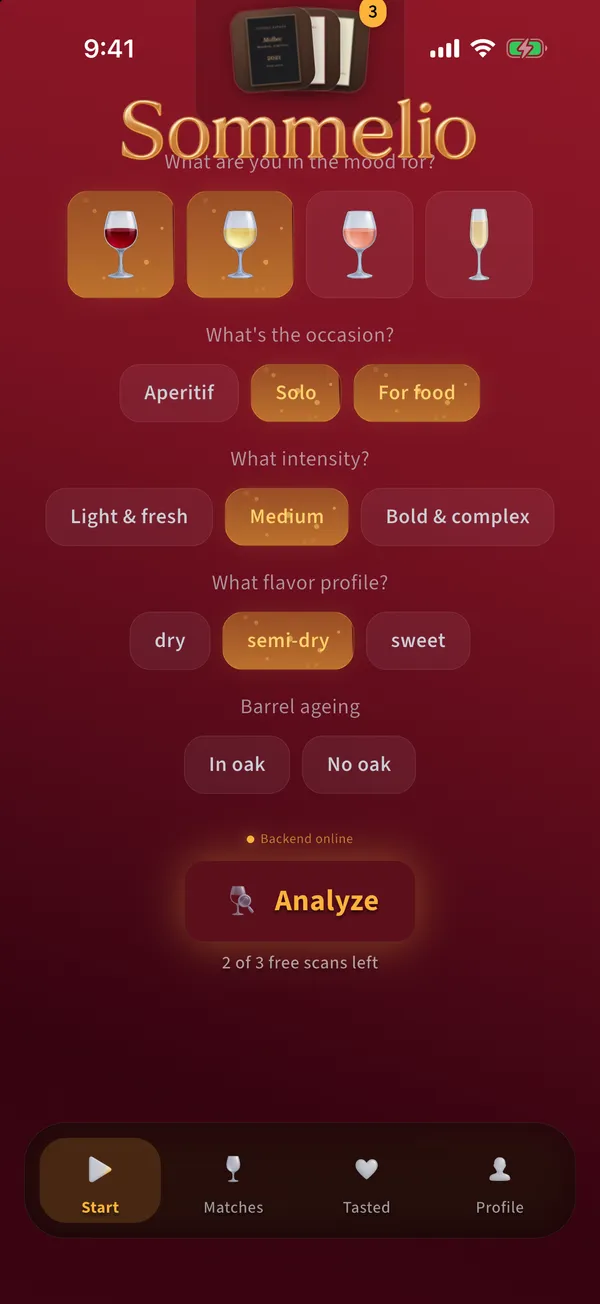
  1. Scroll down on the Start tab. Below the taste profile you see Backend online, the Analyze button and how many free scans are left.

    Start tab with the Analyze button and the number of free scans left
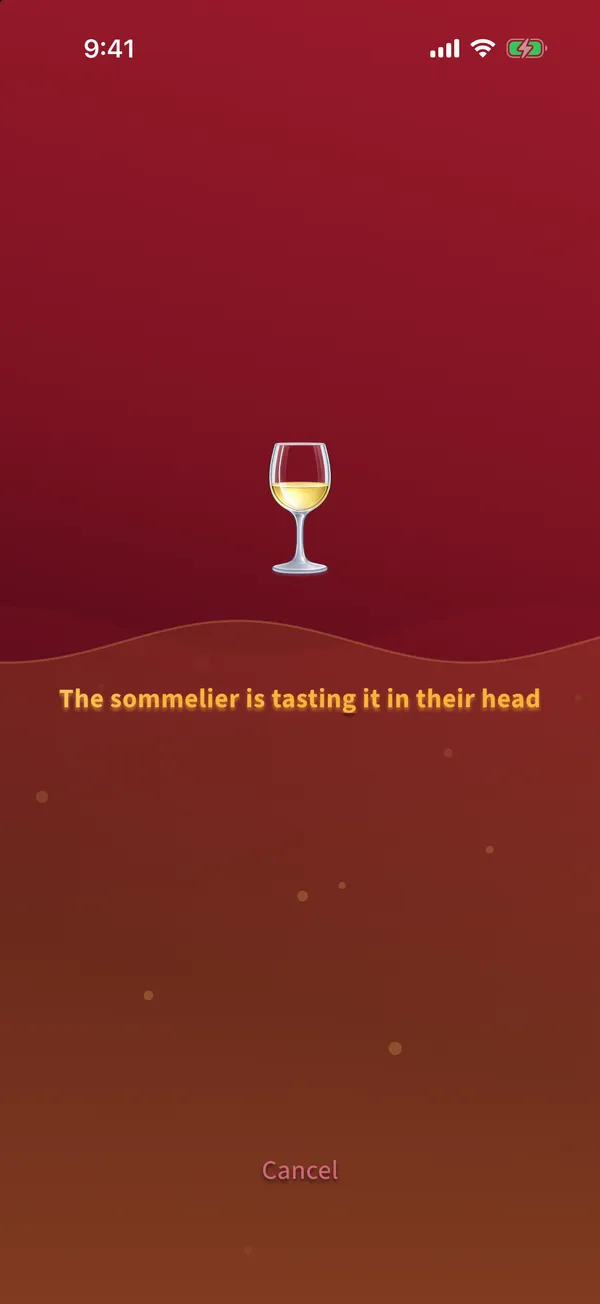
  2. Tap Analyze. A glass fills up while Sommelio reads the wines and compares them with your taste.

    Analysis screen with a filling wine glass and a status message
  3. After a few seconds the Matches tab opens with your best wines.

Tips

  • Cancel at the bottom stops the analysis. A cancelled or failed analysis does not use up a free scan.
  • Keep the app open during the analysis.

Common mistakes

  • Nothing made the cut: none of the wines fits your profile. Widen the profile, for example with a second wine type, and scan again.
  • No connection: check the internet connection and tap Try again.

Back to the topics

Scanning

How do I import a wine list as a PDF?

Goal: Analyze a wine list that a restaurant or shop publishes as a PDF.

Before you start

  • The web link to the PDF, for example copied from the restaurant website
  • A PDF of up to 20 MB

Steps

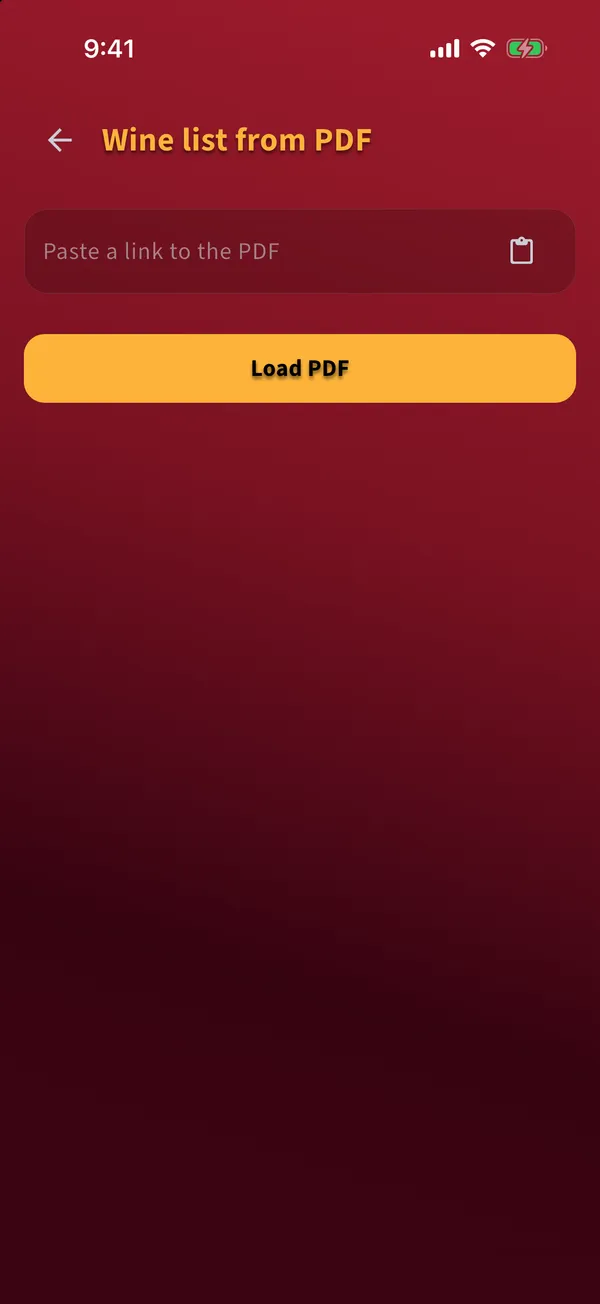
  1. Tap Scan wine, then the PDF icon next to the photo icon. Wine list from PDF opens.

    Screen Wine list from PDF with the link field and the button Load PDF
  2. Paste the link into the field or tap the clipboard icon. Your phone may ask once whether Sommelio may paste.

  3. Tap Load PDF. Sommelio shows the pages of the PDF.

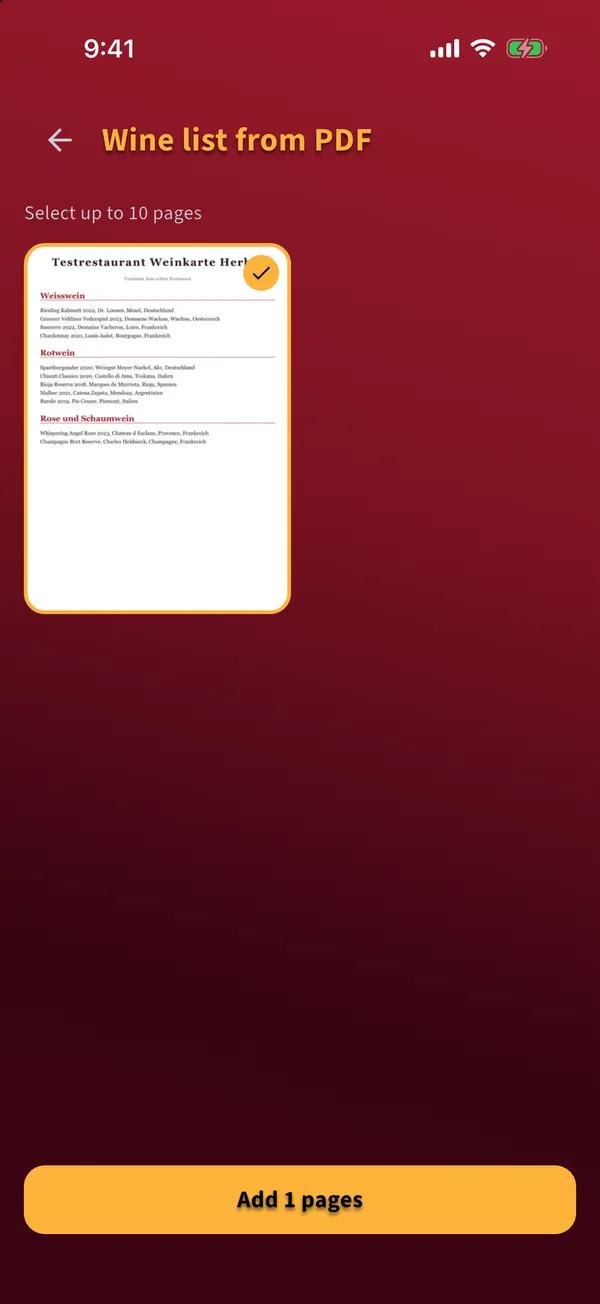
  4. Select up to 10 pages with the wines and tap the button at the bottom to add them.

    Page selection of an imported PDF wine list with one selected page
  5. Tap Analyze on the Start tab.

Tips

  • Select only the pages with the wines you are considering. Fewer pages give a faster result.

Common mistakes

  • That is not a valid link: the link must start with https and point to the PDF itself.
  • The link leads to a web page and not to a PDF. Open the page and copy the link of the PDF file.

Back to the topics

Scanning

How do I use a restaurant's QR code?

Goal: Get recommendations from a restaurant's wine list without photographing it.

Before you start

  • The restaurant offers a Sommelio QR code on its wine list
  • Sommelio is installed and the taste profile is saved

Steps

  1. Open the camera app of your phone and point it at the QR code.

  2. Tap the link that appears. Sommelio opens and loads the restaurant's current wine list.

  3. The analysis starts by itself. Wait until the glass is full.

    Analysis of a restaurant wine list loaded through the QR code
  4. Your matches from this wine list appear in the Matches tab.

Tips

  • Without the app, the QR code opens a page with the links to the App Store and Google Play. Install Sommelio and scan the code again.
  • The restaurant can replace its list at any time. The QR code always loads the current one.

Common mistakes

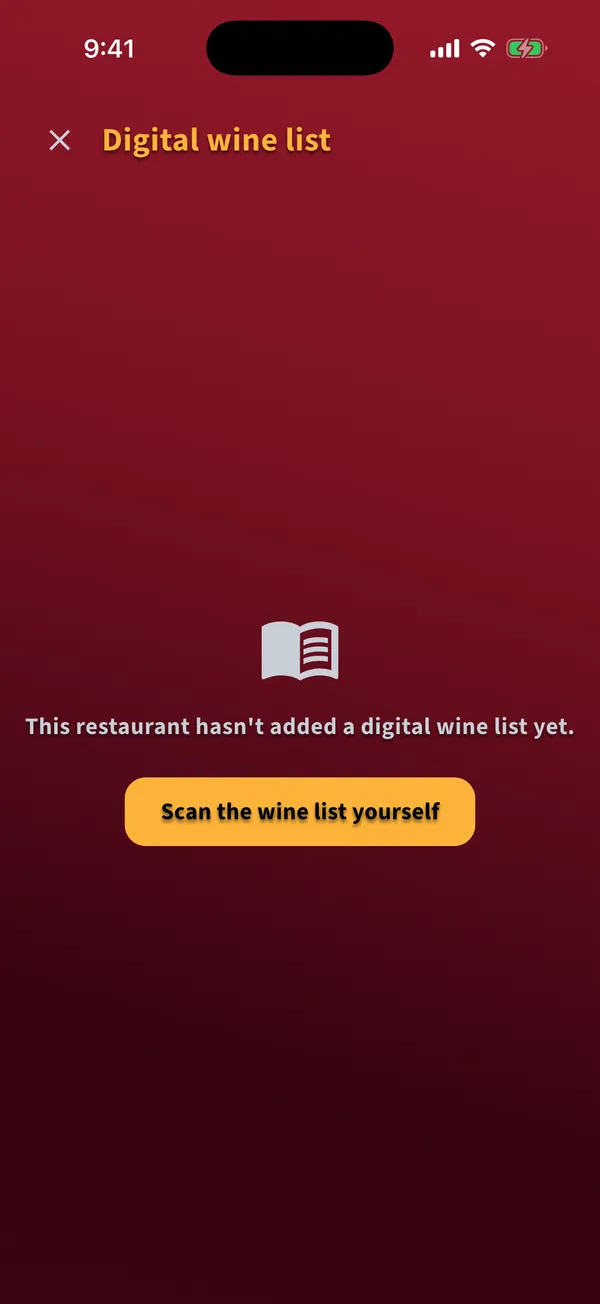
  • This restaurant has not added a digital wine list yet: tap Scan the wine list yourself and photograph the printed list.
  • Your free scans are used up: Sommelio shows the Premium offer. Tap Later and the loaded list waits for you.
Message that the restaurant has not added a digital wine list yet, with the button Scan the wine list yourself

Back to the topics

Results

How do I read my matches?

Goal: Understand which wine fits you best and why.

Before you start

  • A finished analysis

Steps

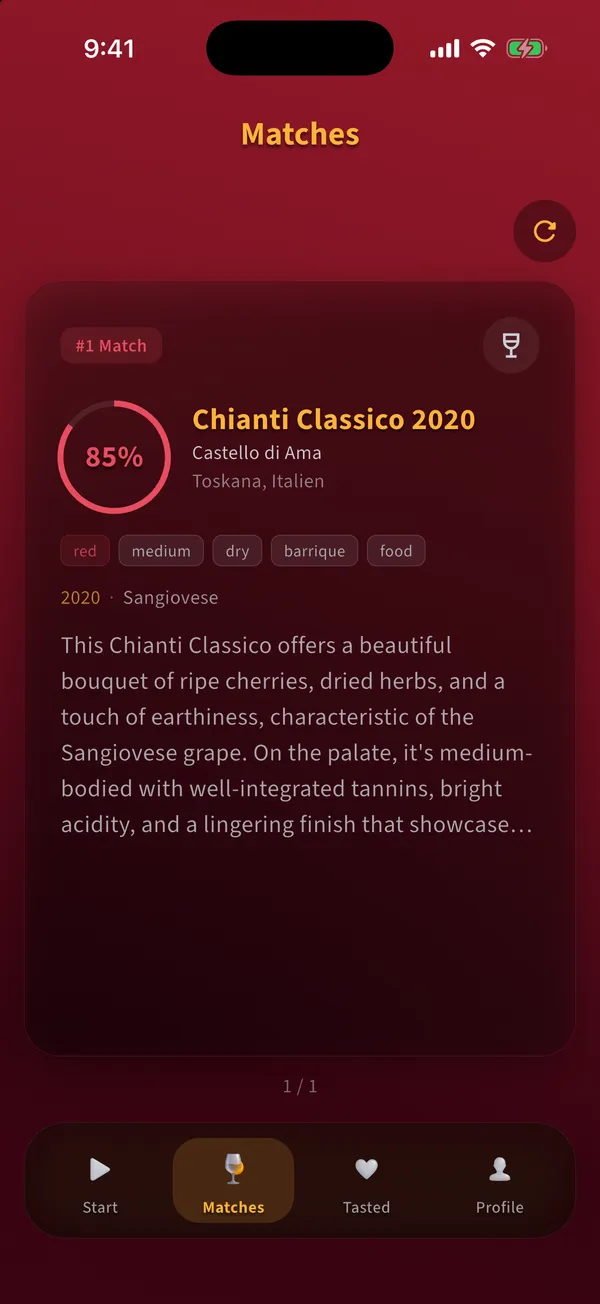
  1. The Matches tab shows up to three wines. The large card is the number one match, the others sit above it as small bars.

    Matches tab with the number one match, its match score and a short verdict
  2. The ring shows the match score in percent: how well the wine fits your profile.

  3. Below the name you see producer, region, tags and a short verdict on why the wine fits or where it falls short.

  4. Tap a small bar at the top to bring that wine to the front.

  5. Tap New scan at the top right to clear the matches and start over.

Tips

  • Wines you mark as tasted stay in your library even after a new scan. Untasted matches are replaced.

Common mistakes

  • Reading the score as a quality rating. It says how well the wine fits your profile, not how good it is in general.

Back to the topics

Results

How do I see all details of a wine?

Goal: Read the full description, grapes and characteristics.

Before you start

  • A wine in Matches or in Tasted

Steps

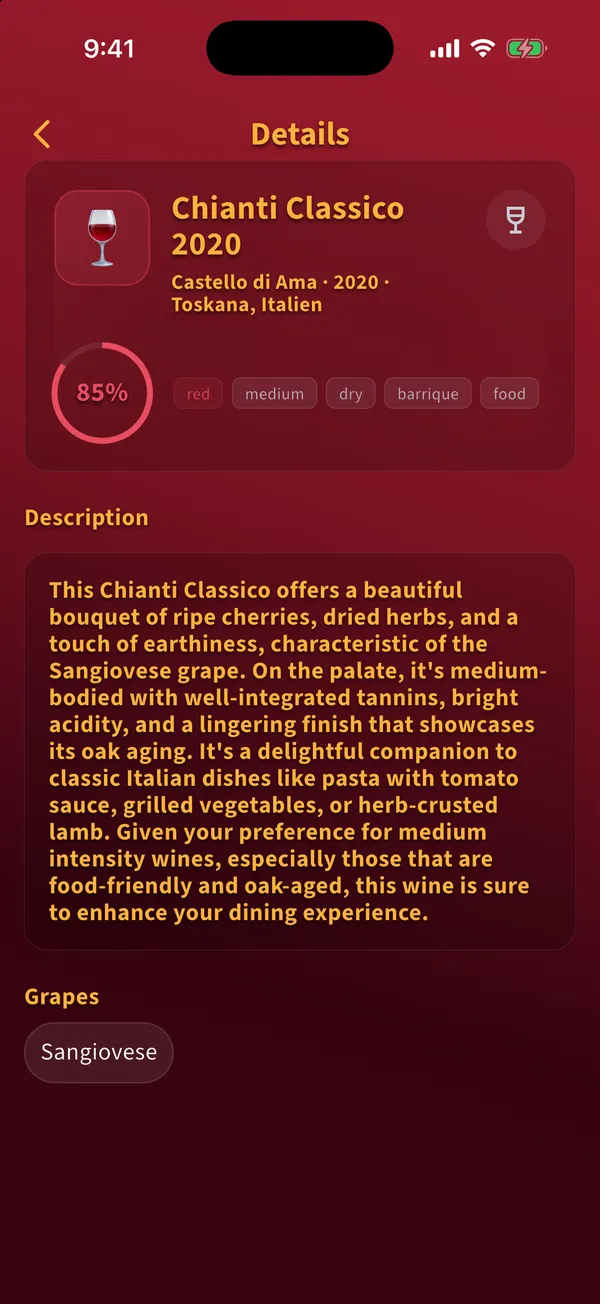
  1. Tap the wine card. The details open.

    Details of a wine with match score, tags, description and grapes
  2. At the top you see name, producer, vintage, region, the match score and the tags for type, body, sweetness and occasion.

  3. Below follow the description and the grapes.

  4. Tap the arrow at the top left to go back.

Back to the topics

Tasted wines

How do I mark a wine as tasted?

Goal: Move a wine you drank into your library, so you can rate it.

Before you start

  • The wine is in Matches

Steps

  1. Open the wine from Matches.

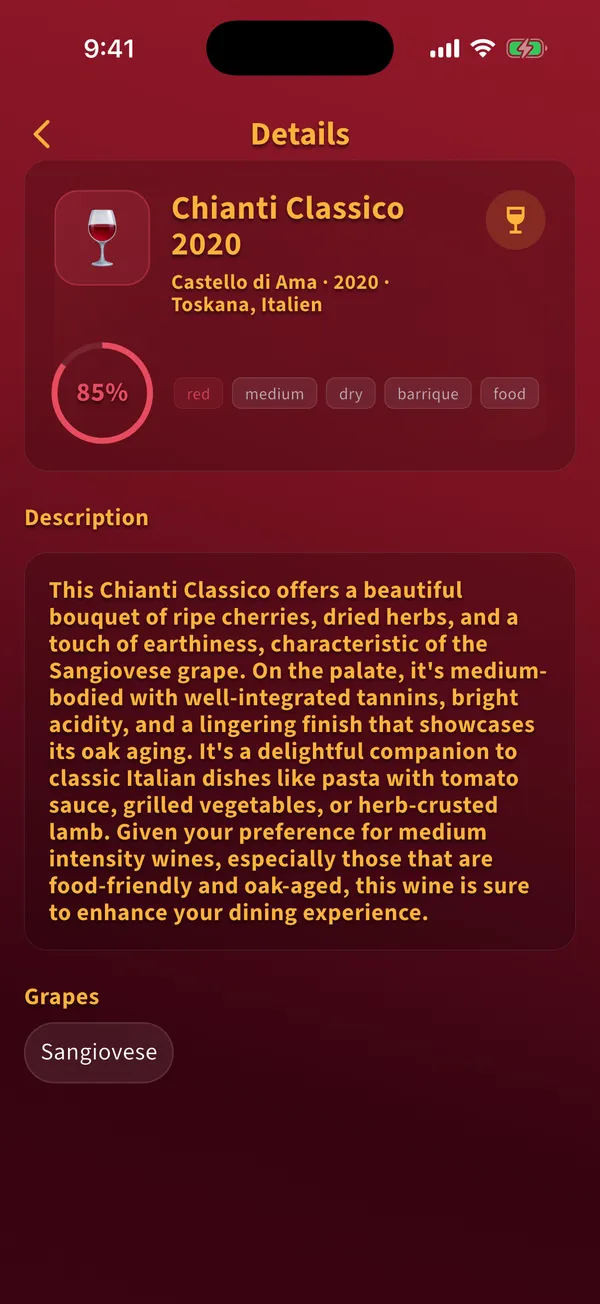
  2. Tap the glass icon at the top right of the details. It turns gold and the wine is now in the Tasted tab.

    Wine details with the gold glass icon that marks the wine as tasted
  3. Tap the icon again to remove the mark. Rating and favorite are then reset.

Tips

  • If you allowed notifications, Sommelio reminds you in the evening to rate the wine.

Common mistakes

  • Expecting untasted matches to stay. A new scan replaces every match that is not marked as tasted.

Back to the topics

Tasted wines

How do I rate a wine?

Goal: Give your verdict, so future recommendations learn from it.

Before you start

  • The wine is in the Tasted tab

Steps

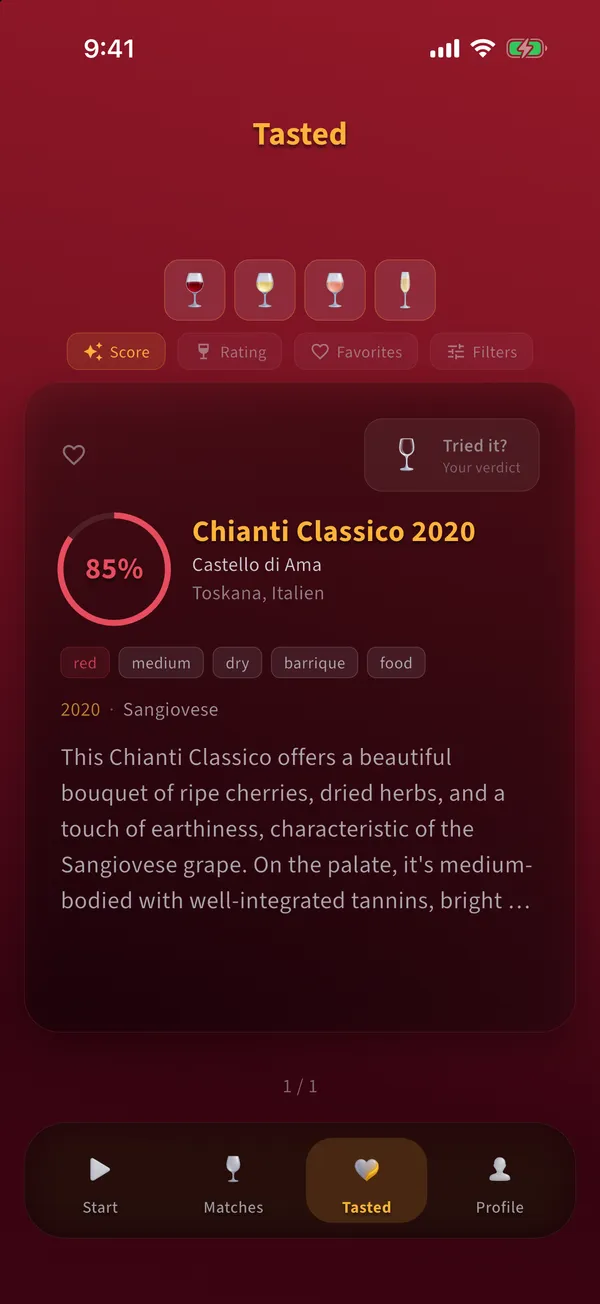
  1. Open the Tasted tab. Each tasted wine has the button Tried it? at the top right of its card.

    Tasted tab with a wine card and the button Tried it
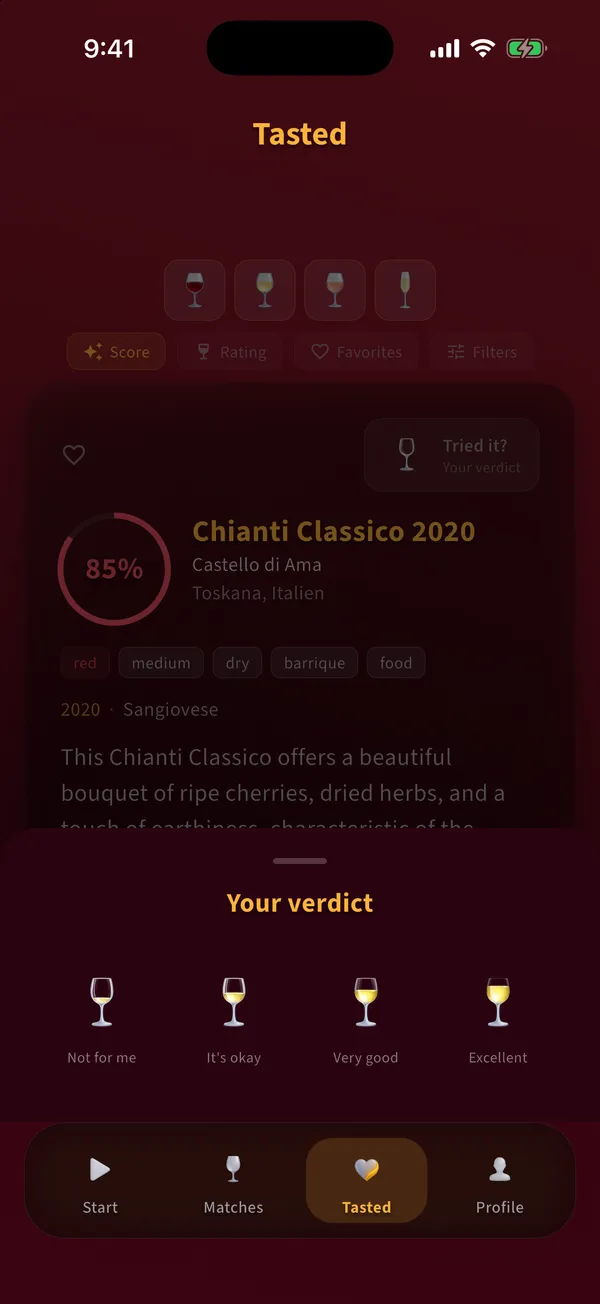
  2. Tap Tried it?. The sheet Your verdict opens.

    Sheet Your verdict with four glasses from Not for me to Excellent
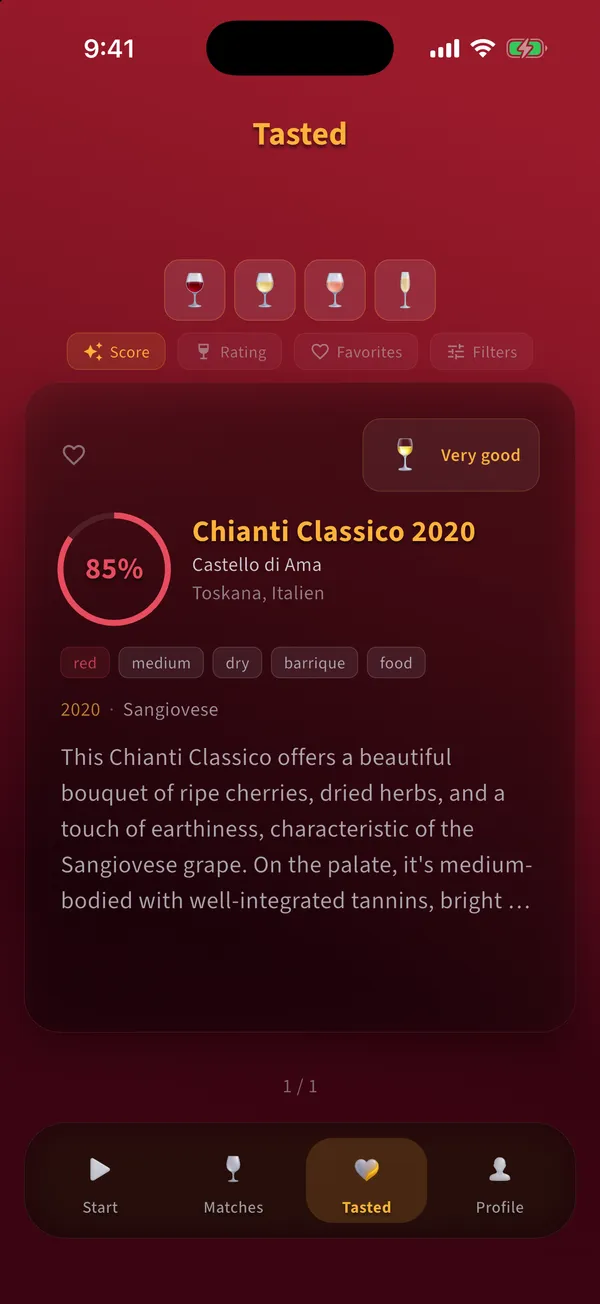
  3. Tap one of the four glasses: Not for me, It's okay, Very good or Excellent.

  4. Your verdict now appears on the card.

    Wine card in the Tasted tab showing the verdict

Tips

  • Low ratings help as much as high ones. Sommelio sends all tasted wines with their rating along with the next scan.

Common mistakes

  • Rating wines you did not drink. That blurs your taste profile.

Back to the topics

Tasted wines

How do I save favorites and adjust the score?

Goal: Mark wines you want to find again and set the score to your own impression.

Before you start

  • The wine is in the Tasted tab

Steps

  1. In the Tasted tab tap the wine card to open the details.

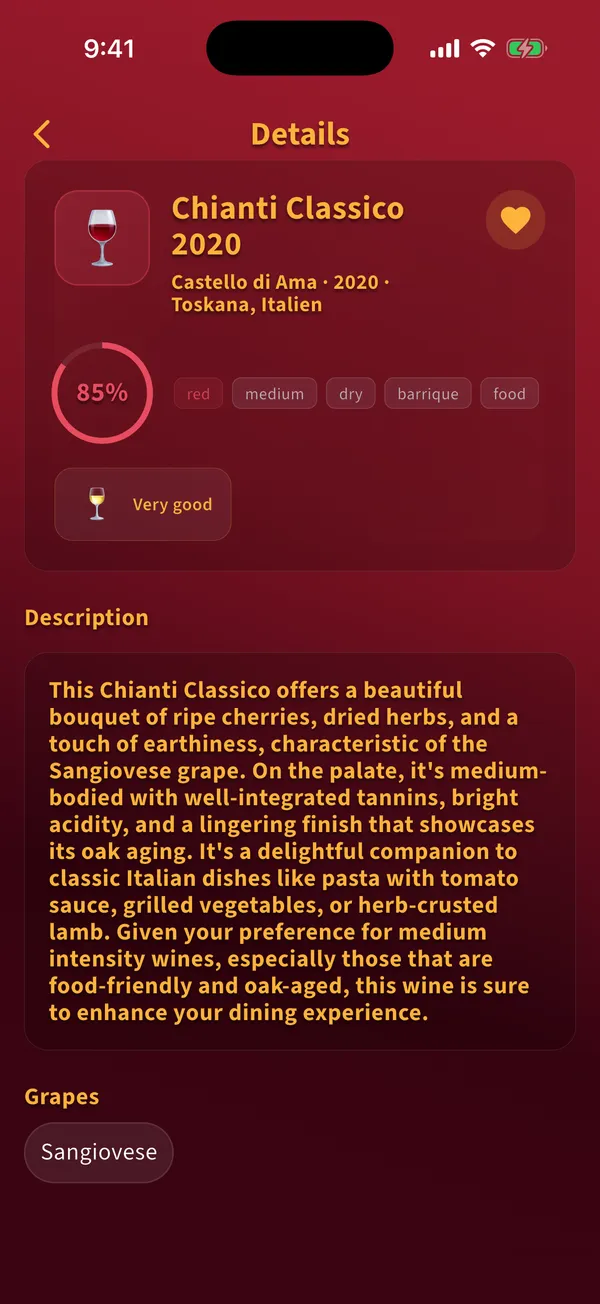
  2. Tap the heart at the top right. It fills with gold and the wine is a favorite.

    Wine details with a filled heart and the verdict
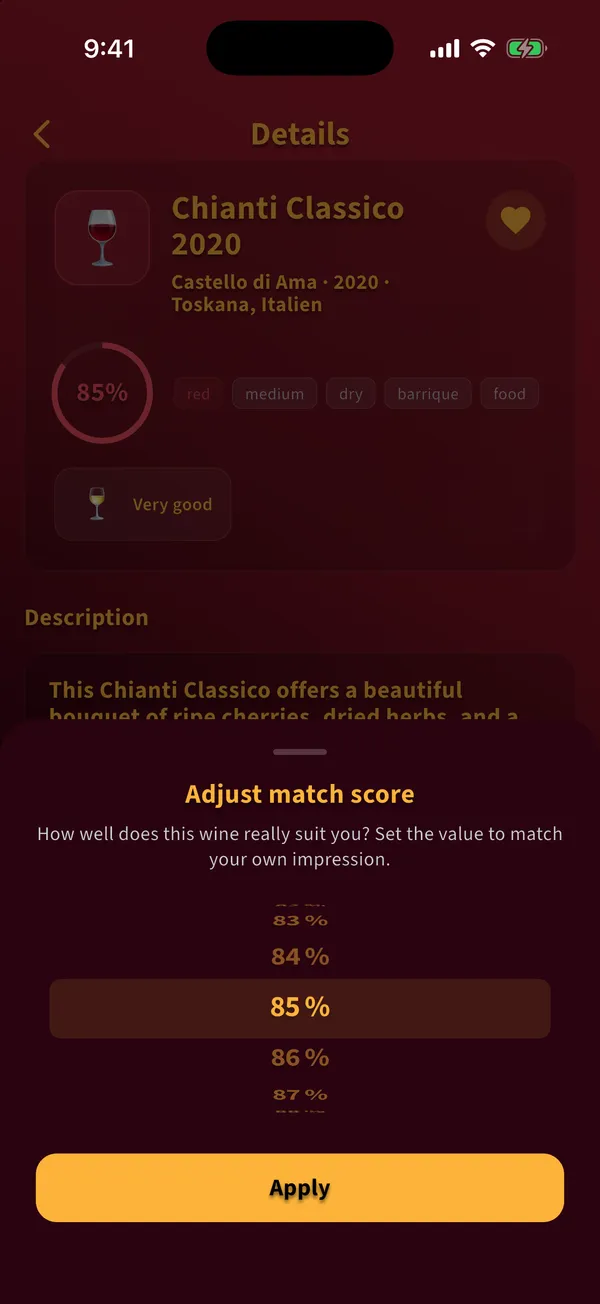
  3. Tap the score ring to open Adjust match score.

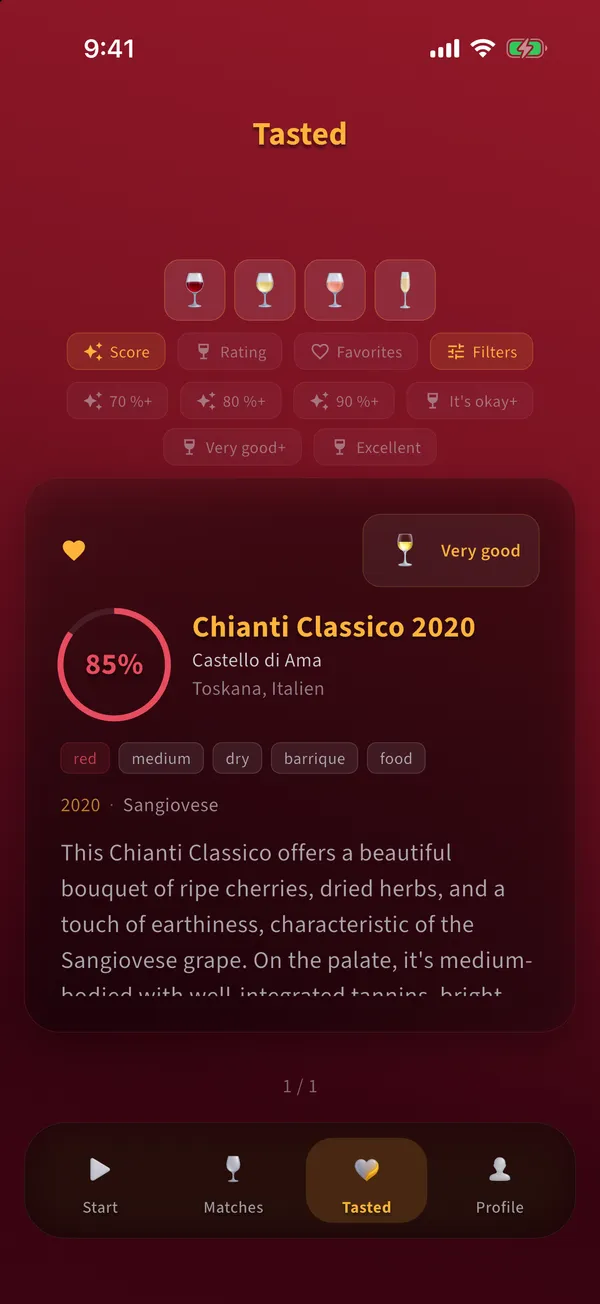
    Sheet Adjust match score with a percentage wheel
  4. Turn the wheel to the value that matches your impression and tap Apply.

Tips

  • Your own score replaces the score from the analysis for this wine.

Back to the topics

Tasted wines

How do I sort and filter my tasted wines?

Goal: Find a wine in your library quickly.

Before you start

  • At least one wine in the Tasted tab

Steps

  1. Tap the glasses at the top to show only red, white, rose or sparkling wines.

  2. Tap Score or Rating to sort. Tap Favorites to show only favorites.

  3. Tap Filters for thresholds: a minimum score of 70, 80 or 90 percent, or a minimum rating.

    Tasted tab with the opened filters for minimum score and minimum rating
  4. Swipe the cards left or right to browse.

Tips

  • A rating filter hides unrated wines. A hint shows how many and removes the filter when you tap it.
  • Your library is stored on your phone and works offline.

Common mistakes

  • Deleting the app. That removes the library from the phone as well.

Back to the topics

Profile and settings

How many scans can I use, and what is Premium?

Goal: Know how many free scans are left and where you see your usage.

Steps

  1. The Start tab shows below the Analyze button how many free scans are left.

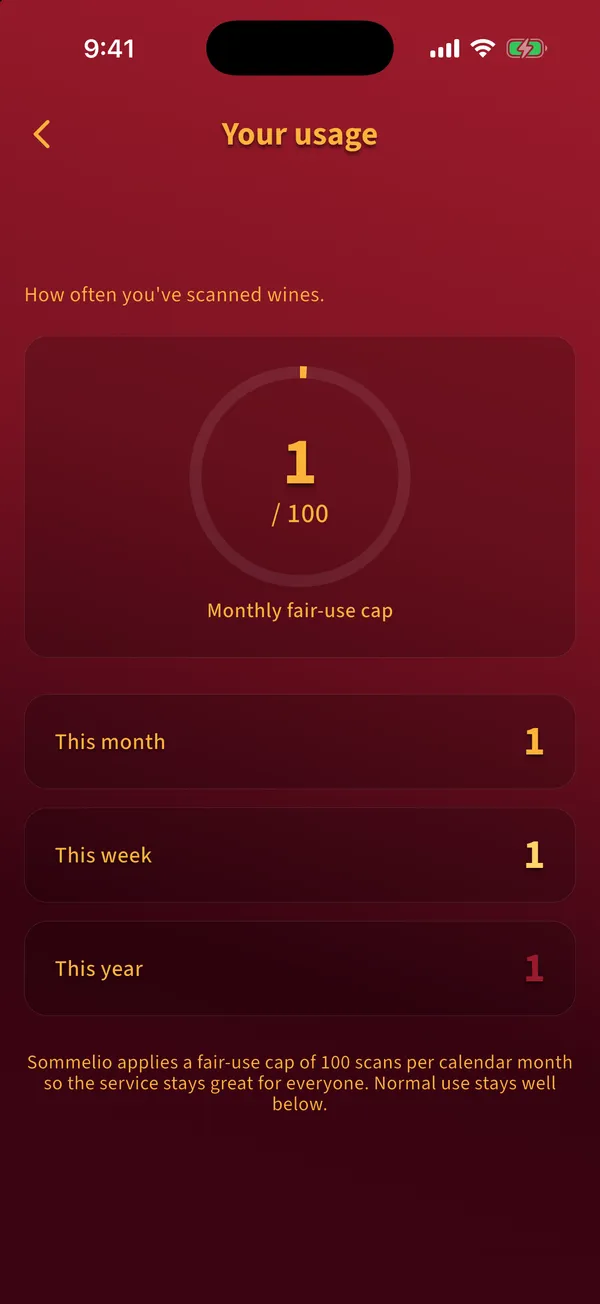
  2. Open Profile and tap Usage to see how many scans you did this week, this month and this year.

    Screen Your usage with the monthly fair-use cap and the scans per week, month and year
  3. When the free scans are used up, Sommelio shows the Premium offer. Premium is available monthly, yearly or as a one-time purchase; the current prices are shown in the app and in your store.

  4. Tap Restore purchases on the Premium screen if you already bought Premium on another device with the same Apple ID or Google account.

Tips

  • Purchases run through the App Store or Google Play. Cancel a subscription in the subscription settings of your store.

Common mistakes

  • Expecting a failed scan to count. Only finished analyses use up a free scan.

Back to the topics

Profile and settings

How do I turn reminders on or off?

Goal: Decide whether Sommelio may remind you to rate wines and to come back.

Before you start

  • Notifications allowed in the system settings of your phone

Steps

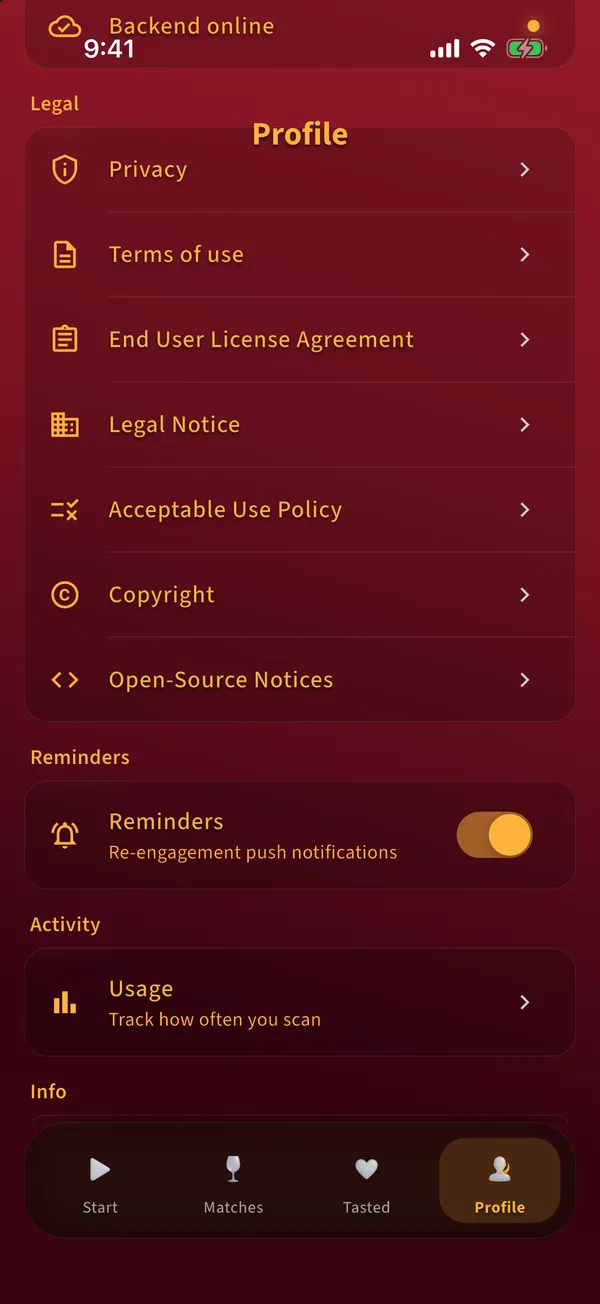
  1. Open Profile and scroll to Reminders.

    Profile with the legal documents, the Reminders switch and Usage
  2. Use the switch to turn reminders on or off.

Tips

  • Rating reminders arrive one and five days after you mark a wine as tasted, in the evening.

Common mistakes

  • The switch is on but nothing arrives: notifications are blocked in the system settings. Allow them there under Sommelio, Notifications.

Back to the topics

Profile and settings

Where do I find help, privacy and legal information?

Goal: Contact support and read the legal documents.

Steps

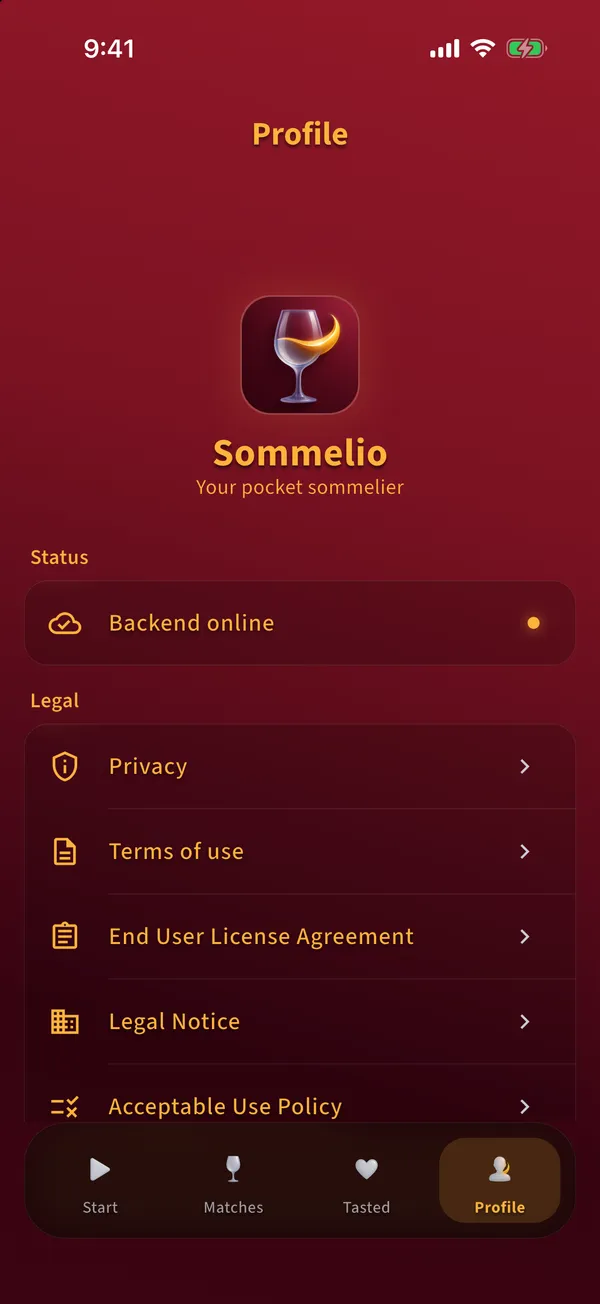
  1. Open Profile. Under Legal you find privacy, terms of use, license agreement, legal notice and further documents.

    Profile tab with status, legal documents and app information
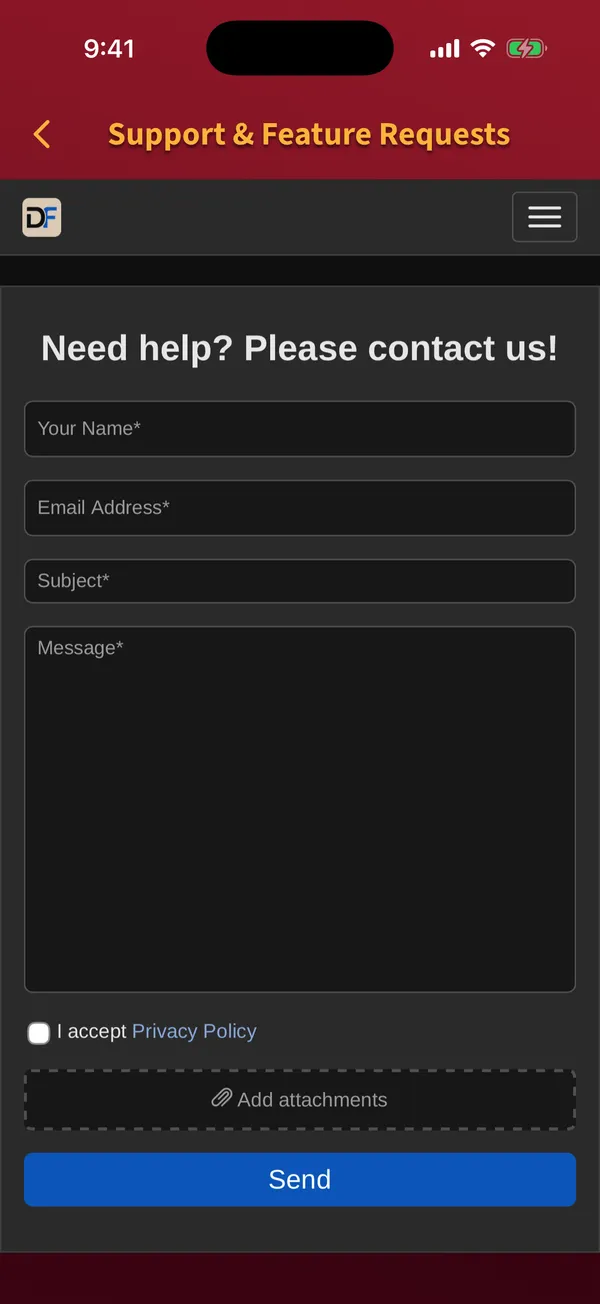
  2. Tap Support & Feature Requests at the bottom of Profile. The support form opens inside the app.

    Support form inside the app with fields for name, email, subject and message
  3. Fill in name, email, subject and message, accept the privacy policy and tap Send.

Tips

  • The app version is shown at the very bottom of Profile. Add it to your message.

Back to the topics

Still stuck?

Write to us through the support form. Add the app version from Profile and a screenshot if you can.

Open the support form

FAQ

Questions about the app

Do I need an account for Sommelio?

No. Sommelio works without an account, email address or password. Your taste profile, ratings and favorites are stored on your phone.

Which languages does the app support?

The app is available in 19 languages and follows the language of your phone.

Does Sommelio work without internet?

Your library and your ratings work offline. Analyzing photos, PDF files and QR wine lists needs an internet connection.

Why does a wine get a low match score?

The match score compares the wine with your taste profile and your ratings. A low score means the wine fits your current settings less well, not that it is a bad wine.

What happens to my photos?

Photos are sent to the Sommelio backend for the analysis and deleted from storage when the analysis job ends. Details are in the privacy policy.